MIDI
Presenter by WorshipTools supports MIDI mapping, meaning you can connect your MIDI devices to control your Presenter service items.
MIDI devices can either be connected directly to your computer (via USB or 5-pin MIDI) or over a network connection. If you're connecting MIDI over a network, please follow the instructions in "Setting up a MIDI Network Device".
MIDI Configuration in Presenter
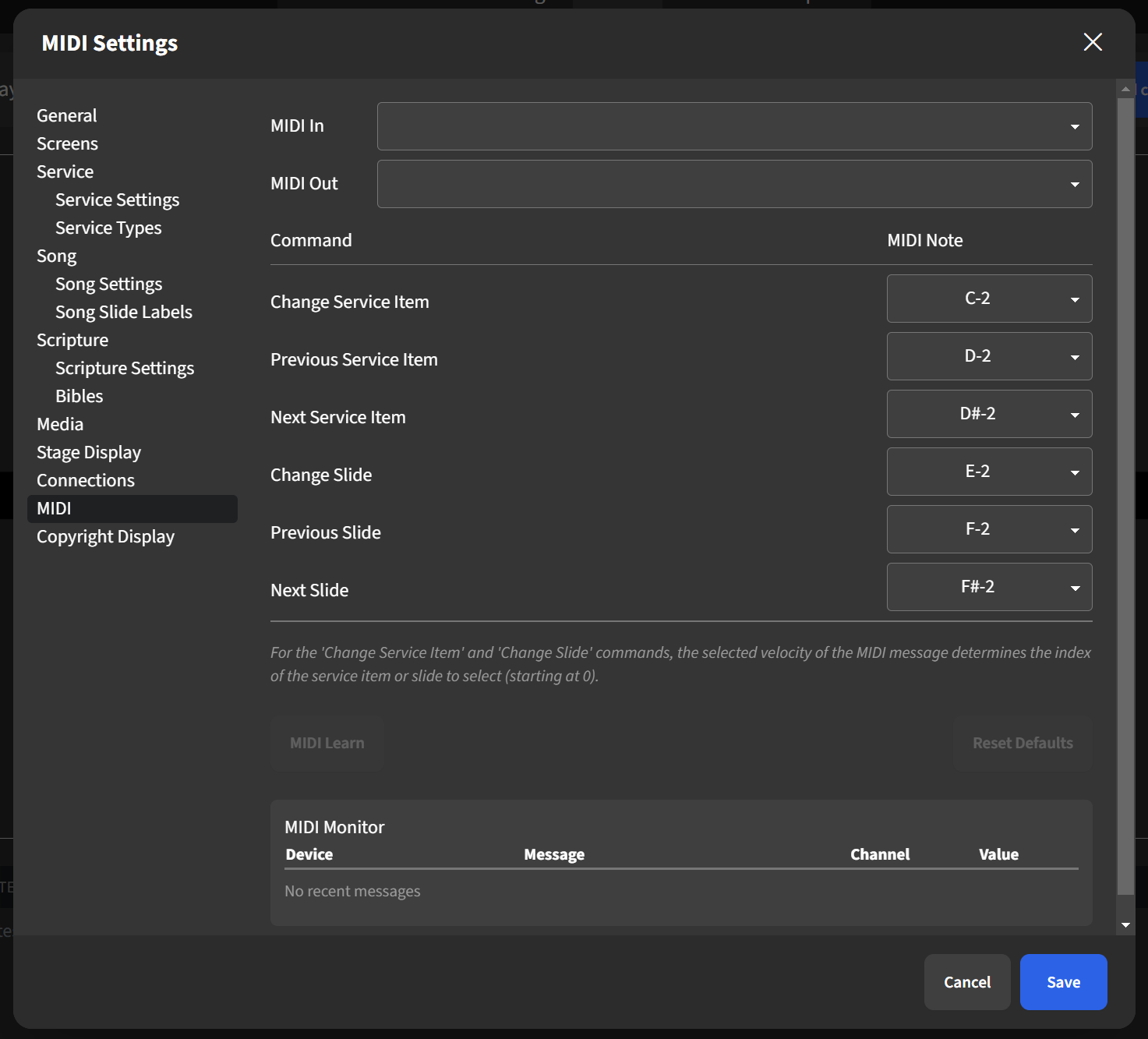
Go to ⚙ Settings in Presenter and click MIDI from the left. Next, select your session from the MIDI In drop-down menu. Once connected, you'll see a green MIDI indicator show towards the top of your Presenter window. If you'd like, you can set different MIDI items per command. Just make sure to hit Save if you make any adjustments to those assignments.
Setting up a MIDI Network Device
Some MIDI devices and MIDI-enabled software can send messages over a network session. This allows for MIDI control from one computer to another computer. Configuring MIDI Network sessions varies between operating systems.
macOS:
First, make sure that you have a MIDI session set up and running on the computer running Presenter to be able to listen for MIDI messages sent over the network.
If configuring a MIDI Network to be able to control Presenter from MIDI-enabled software on the same computer, please follow the steps in this article. If you're running the controller and Presenter on separate devices, be sure to point the MIDI output to the new MIDI Network session.
Once the session is set up and your MIDI device is connected to that session, you're ready to configure the settings in Presenter.
Windows:
Unlike macOS, Windows doesn't include a preinstalled MIDI driver, so you'll need to download one if you don't already have one installed on your computer. You can check out rtpMIDI or research your own preferred alternative. Once you have your MIDI driver installed, set up a MIDI session per the instructions for your chosen driver. rtpMIDI's tutorial can be found here. Once the session is set up and your MIDI device is connected to that session, you're ready to configure the settings in Presenter. If you're running both the MIDI controller and Presenter (the MIDI receiver) on the same computer, you'll need to follow some extra steps. Please scroll down to the bottom of this article for more instructions.
Go to Settings in Presenter and click MIDI from the menu on the left. Next, select the session from the MIDI In drop-down box. If you'd like, you can set different MIDI items for each command. Just make sure to click Save if you make any adjustments to those assignments.
*Compatible with Windows 10 and Windows 11