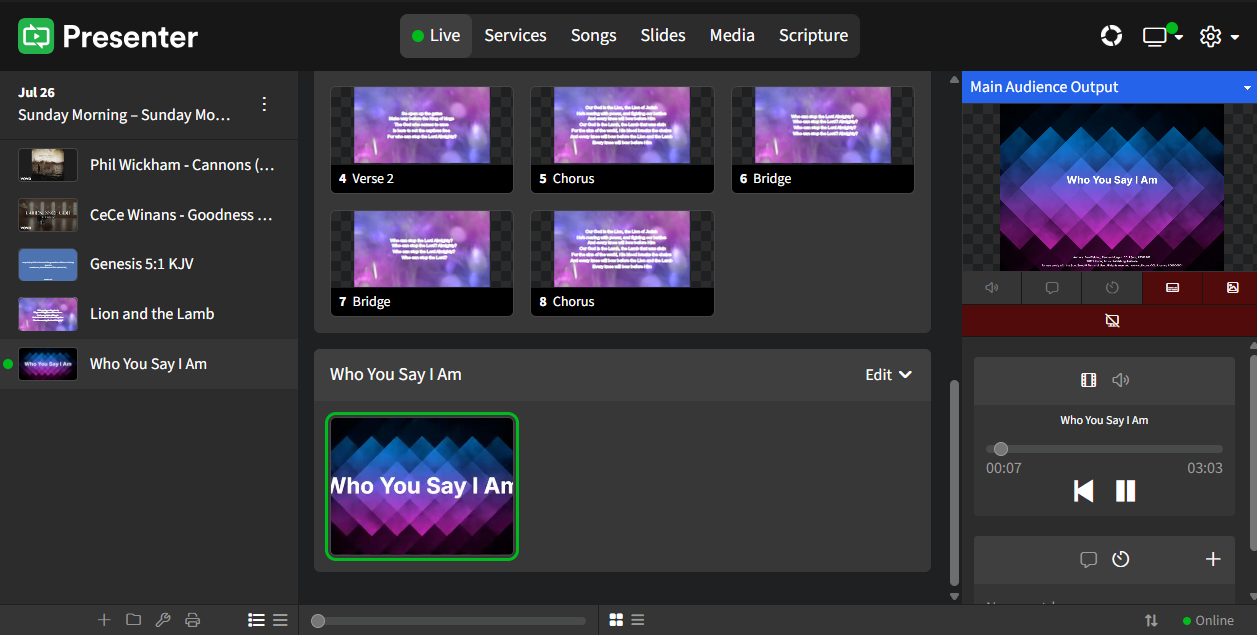
SongSelect Lyric Videos
SongSelect Lyric Videos can now be added as a media item in WorshipTools Presenter.
Before you start, ensure that you are using Presenter in Online mode. SongSelect Lyric Videos will not be accessible if Presenter is in Offline mode.
To get started, open Presenter and create a new service, or locate your open service on the left side
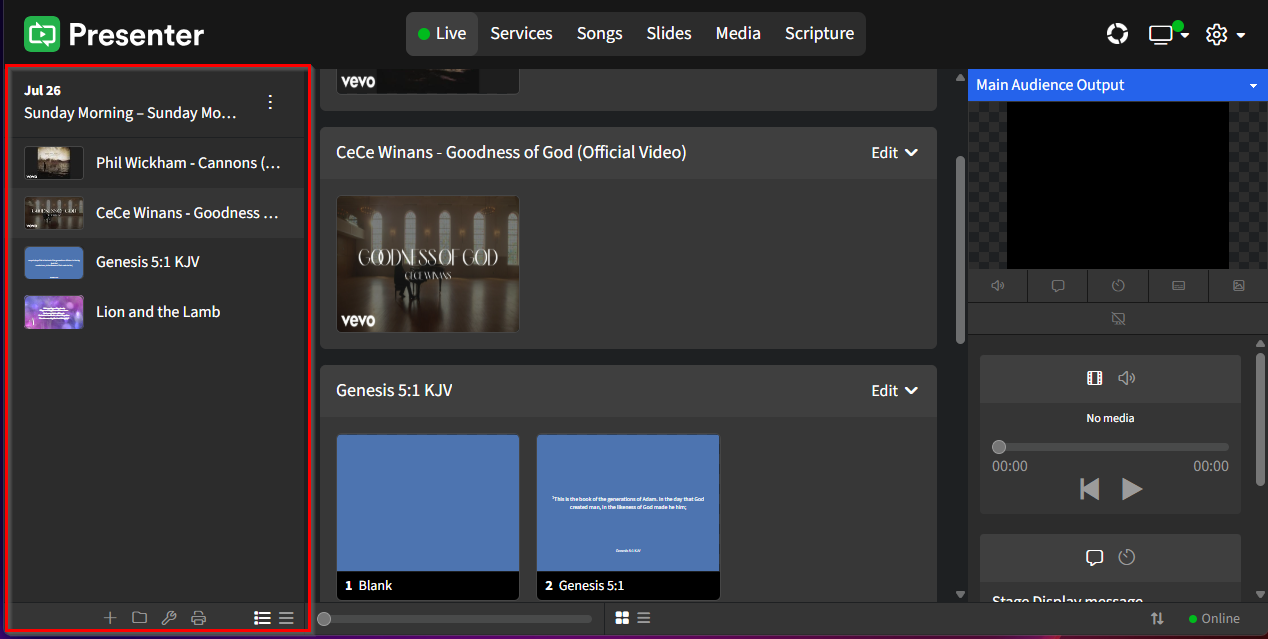
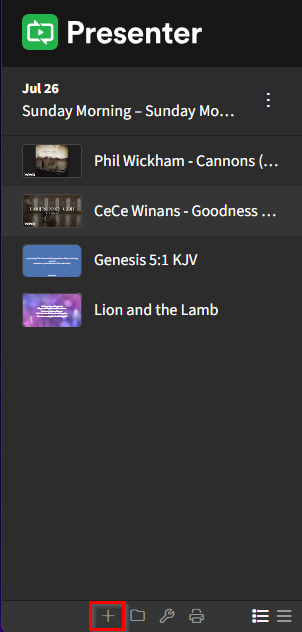
Click on the + to add a new service item
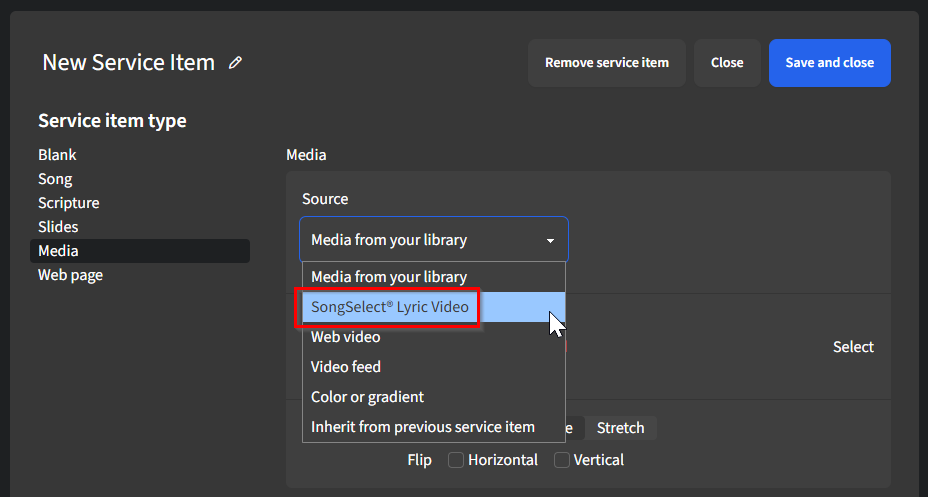
In the New Service Item window, select Media as the service item type
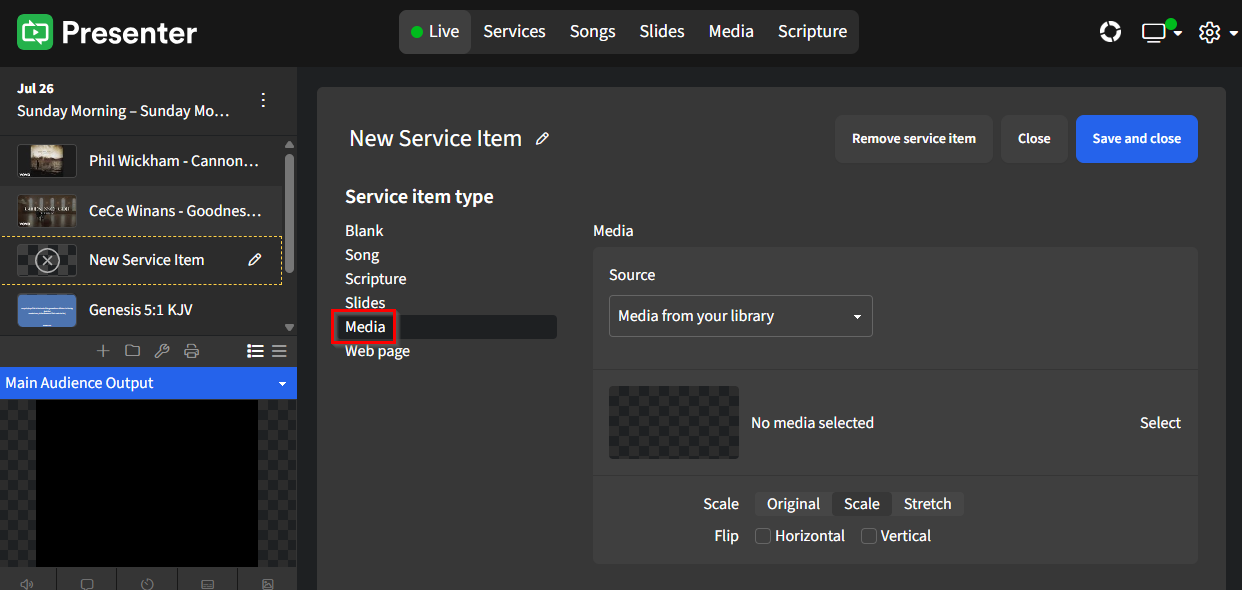
In the Source dropdown, choose SongSelect Lyric Video
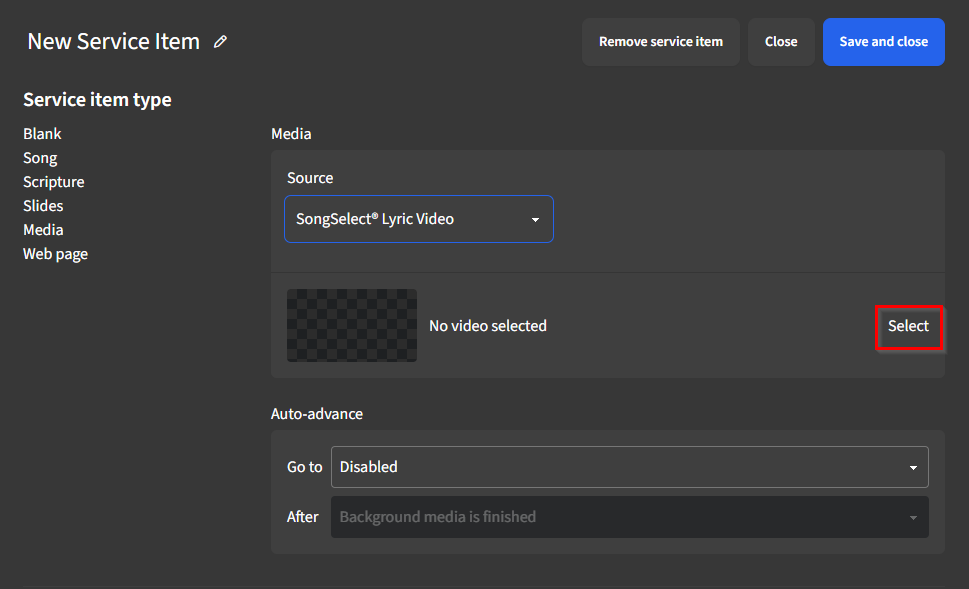
Click Select, which will launch a window to your SongSelect connection
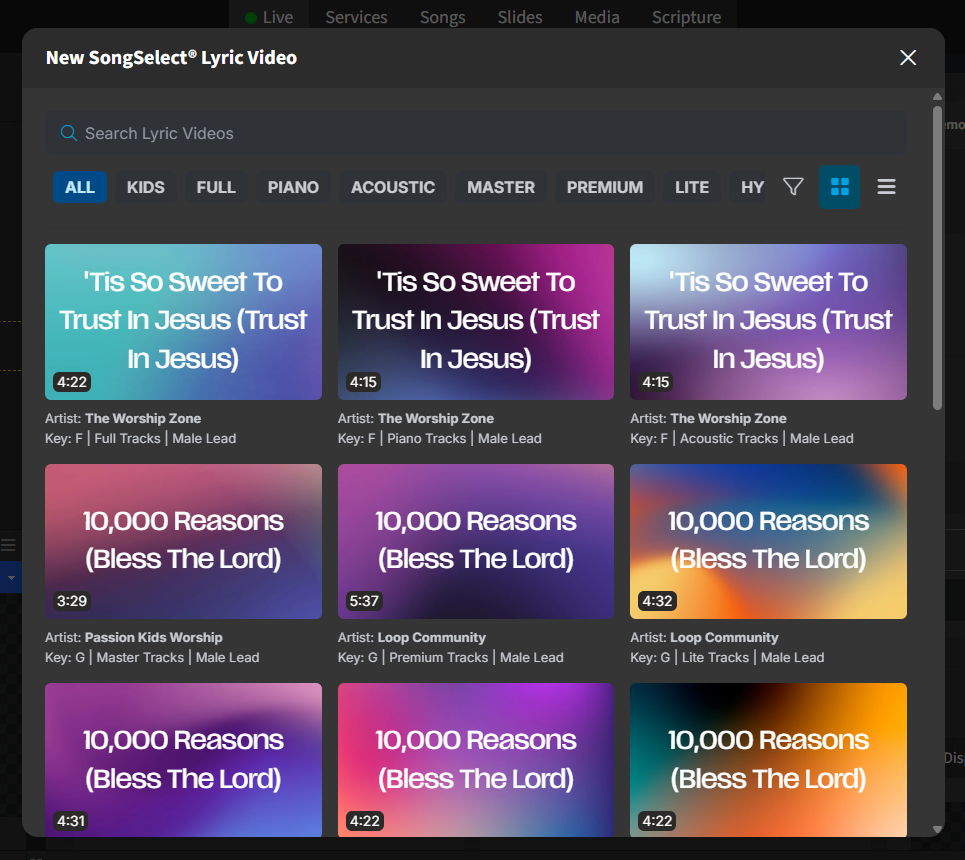
In the next window, SongSelect Lyric Videos will appear with options for searching or filtering results. Use the search bar or tags to locate a specific video.
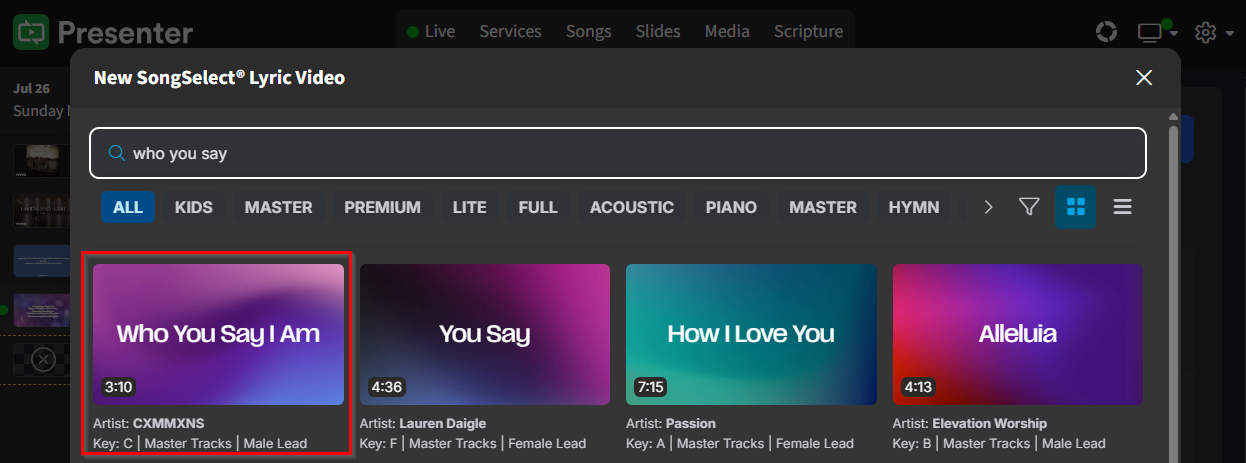
When the desired lyric video is found, click on its thumbnail to open it
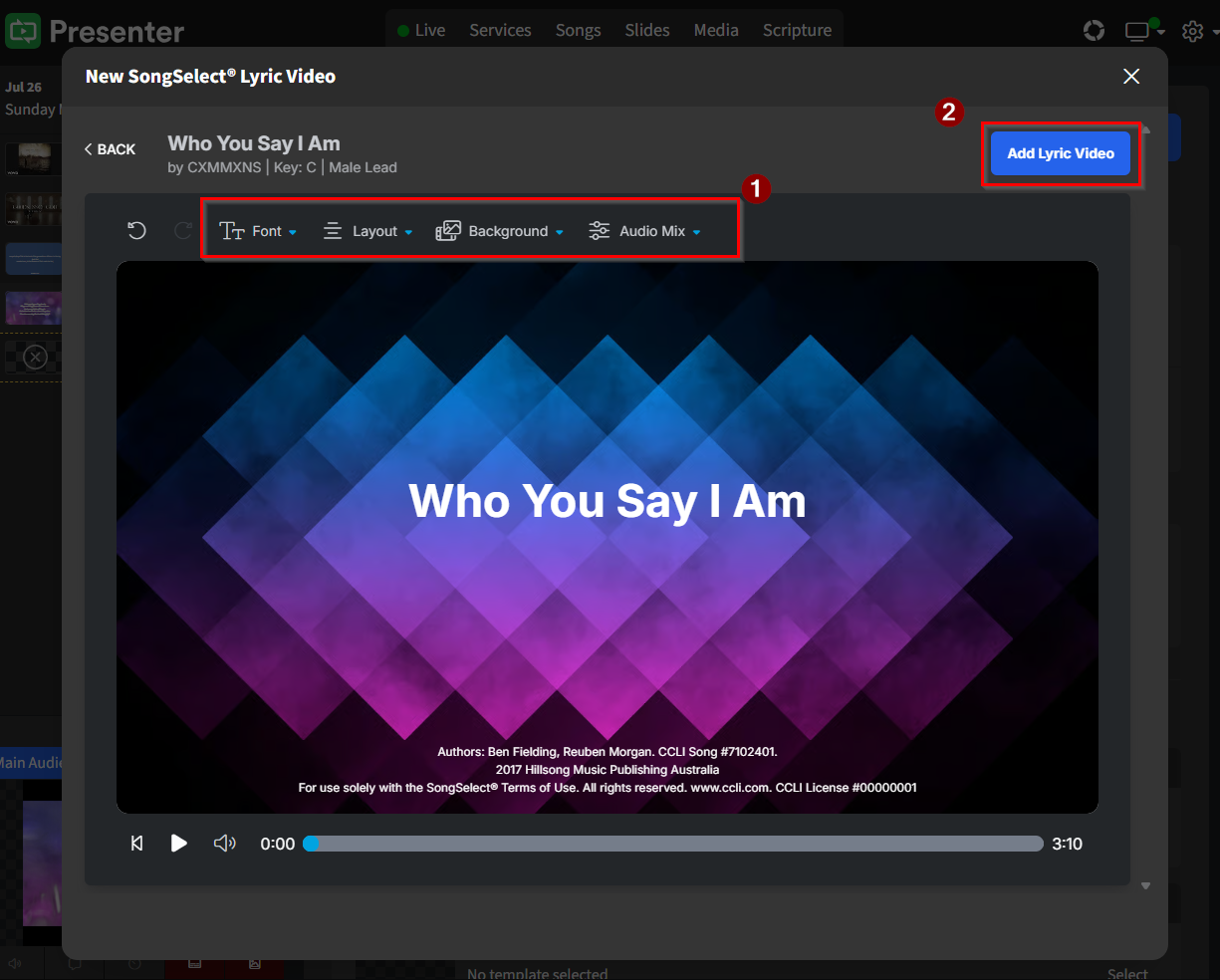
Next, personalize this lyric video according to your preferences by adjusting the font, layout, background, or audio mix. Click the Add Lyric Video button when you have finished customizing.
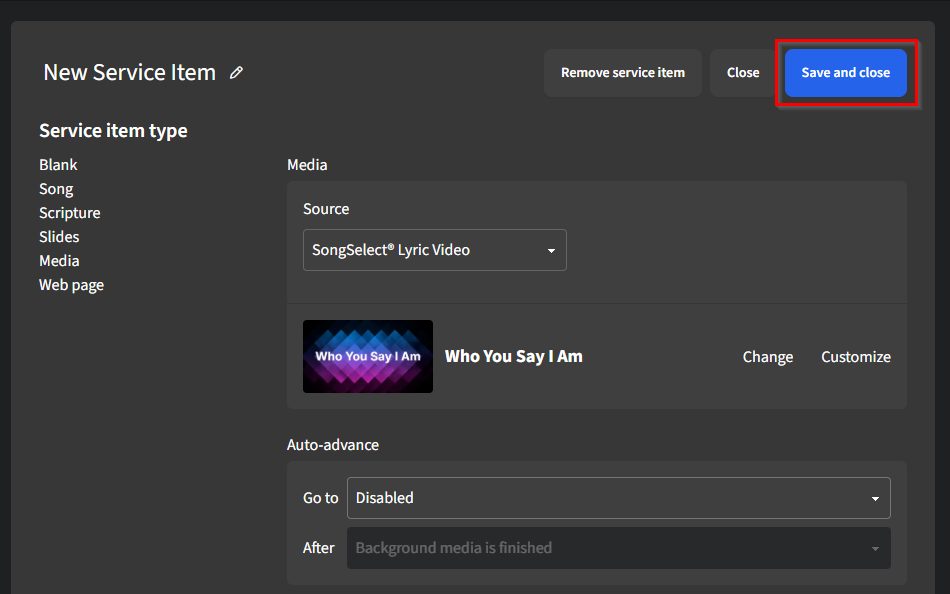
Once the lyric video is connected to the service item, click Save and close to add it to the service.
Once the item is added to your service, you can interact with it just like any other service item.