Customizing Song Flow in Slides
On Presenter by WorshipTools, there are three different ways you can customize and rearrange the order (or arrangement) of the lyrics.
Option 1: Default Import Order
When a song is first imported into Presenter, it has a default order. This usually consists of the individual sections of the song without any specific arrangement or repeats.
Option 2: Custom Order of Slides
Song slides can be rearranged from their default order to create a more seamless experience during the service. This ensures that all lyric slides are in the correct sequence to match how the worship band performs the song.
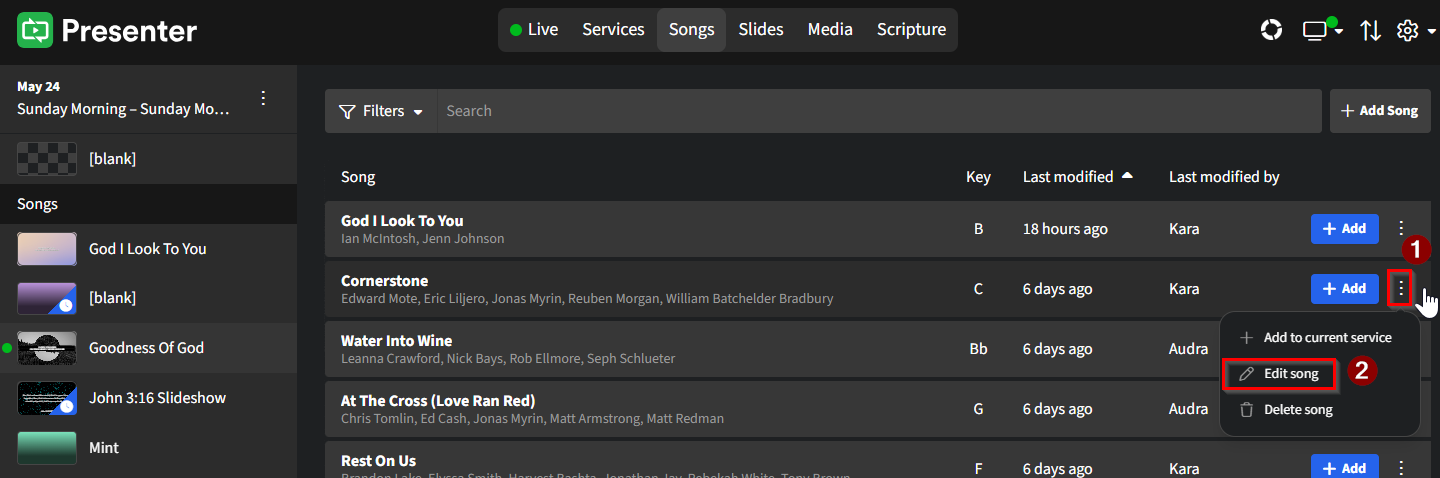
To customize the order, locate the song in your Songs library, click on its ellipsis (three dots) > Edit Song.
To add a slide to your custom slide order, click the + at the top of the Slides panel to insert a blank slide. You can then drag and drop this blank slide to the desired position amongst the other slides.
Use the formatting options in the formatting panel on the right to further customize the slide.
Within the Custom Slide Order panel, you can continue to add slides and drag and drop slides to rearrange them until you achieve your preferred order.
This custom slide order will become the new default preset for the song. Whenever this song is added to a service, the customized order will be applied.
You can always modify the custom order or make adjustments at the service level if needed.
Option 3: Service Item Order
Option 2 explained how to set a custom default order for a song; however, there may be times when you want to change your default arrangement. The third option is useful in these situations, as it allows you to rearrange the song at the service level rather than at the song level.
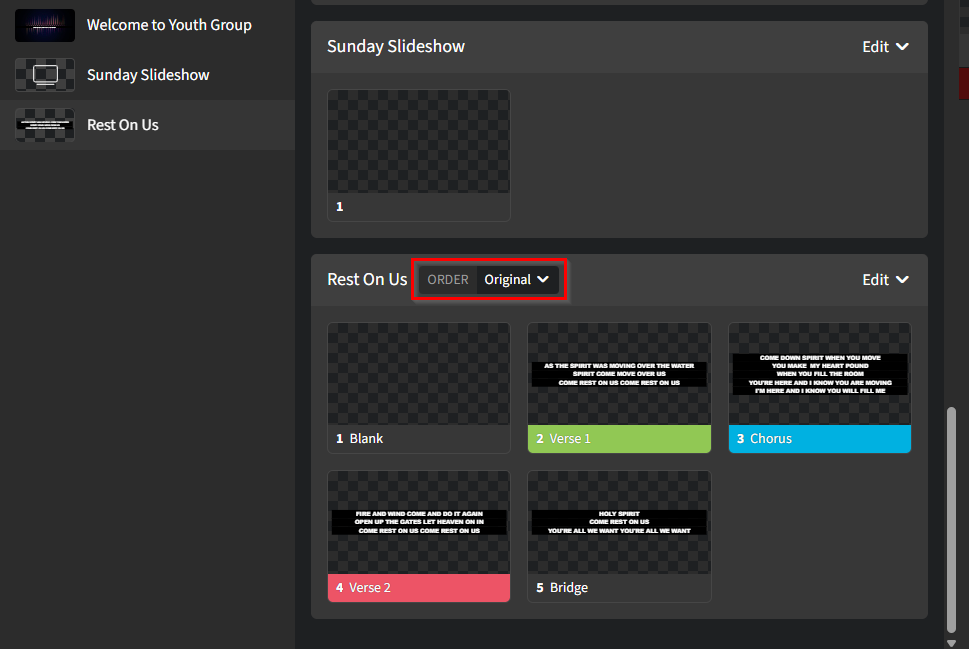
To start, click on the song item from the service order on the left. The song's slides will then populate in the middle with a toolbar appearing to the right of the song title.
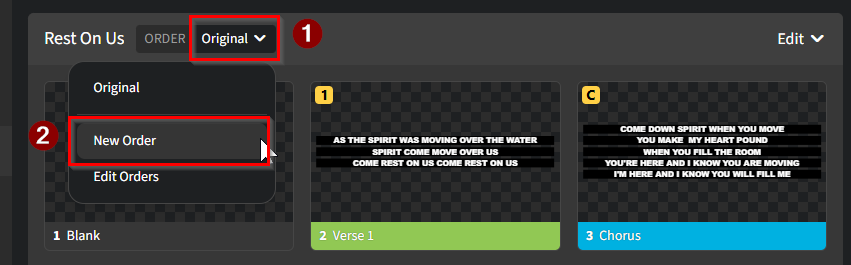
Click on the drop-down, then choose New Order.
In the Edit Song orders window, first assign a name to this song order. Now, click the + on the desired slide under the ORIGINAL ORDER column to move it into your custom song order column, or click Add all slides.
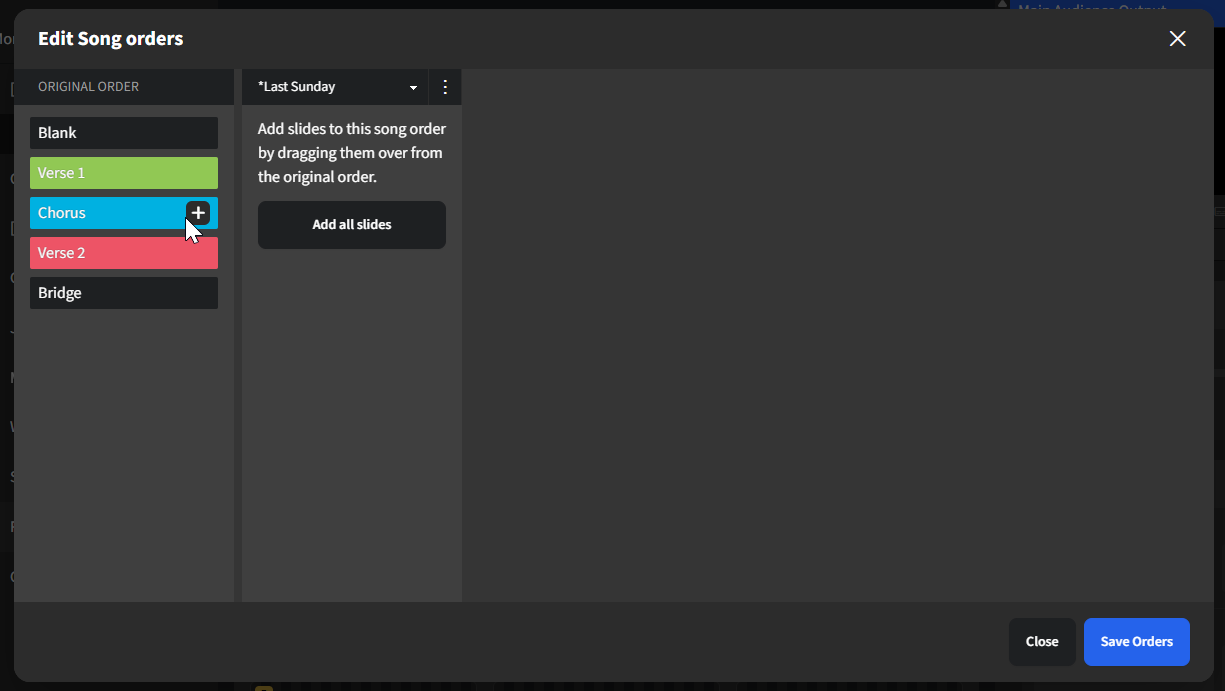
Drag and drop the slides in your custom order column until you have your desired arrangement. Be sure to click Save Orders to save the changes. Click into the Order drop-down again and select the name of the song order just established to apply the changes to the song.
Arrangements at this level only affect this specific service item within the context of the current service. It will not affect a song's default order as set in Options 1 or 2 above. So, when the song is used again in a future service, it will adopt the default order as set in Options 1 or 2.