Importing Lyrics
With Presenter, you can import song lyrics from CCLI SongSelect, and in the latest version, you can also import from LoopCommunity! Additionally, you still have the option to create new songs manually.
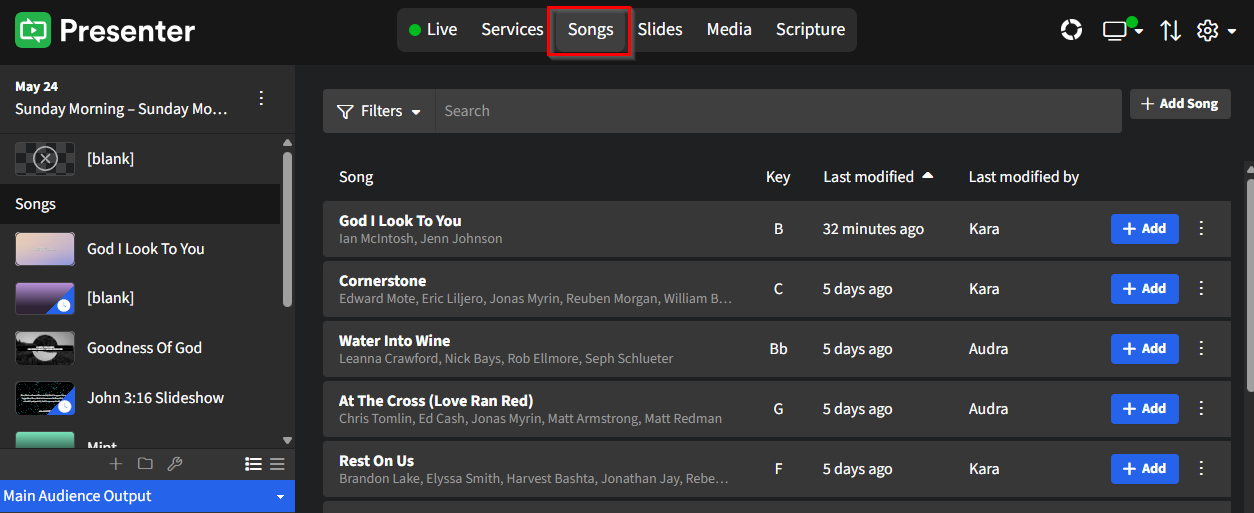
This article will explore each of these options. First, click on Songs within Presenter to access your song library.
Import from LoopCommunity
Before getting started on importing songs, be sure you've set up Loop Connect.
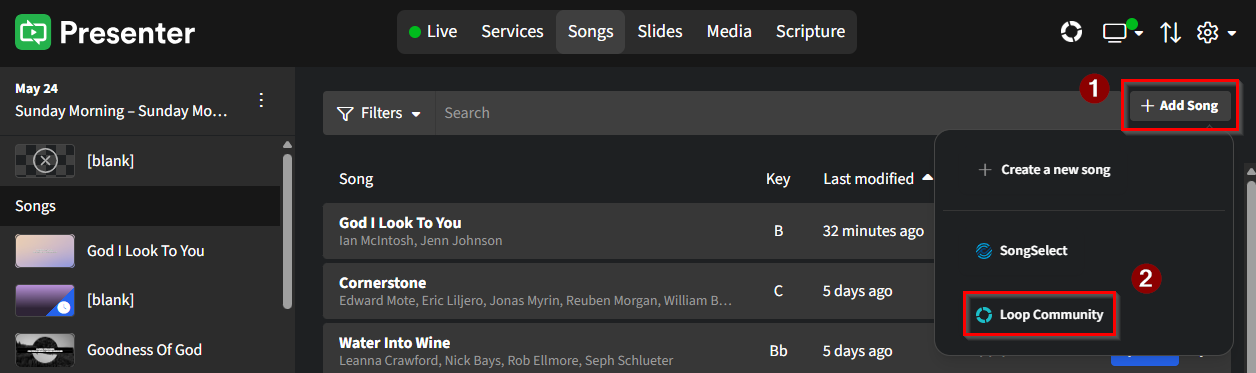
Click the + Add Song button in the right-hand corner of Presenter, then select Loop Community from the list of options.
Select or search for the desired song, then click + Add. On the Import pop-up, set the max lines per slide and assign a Template, then click Import.
The selected song should immediately show in your song library at the top of the list.
Import from SongSelect
To connect SongSelect to your WorshipTools account, first, click on the ⚙ gear icon in the upper right corner of the Presenter screen and select Settings from the dropdown menu. Next, choose Connections from the left-hand menu and enter your active CCLI email and password to connect to SongSelect. Please remember that only users with Admin-level permissions can establish this connection.
To connect to SongSelect from within Charts, please read this article. To connect from within Planning, please read this one.
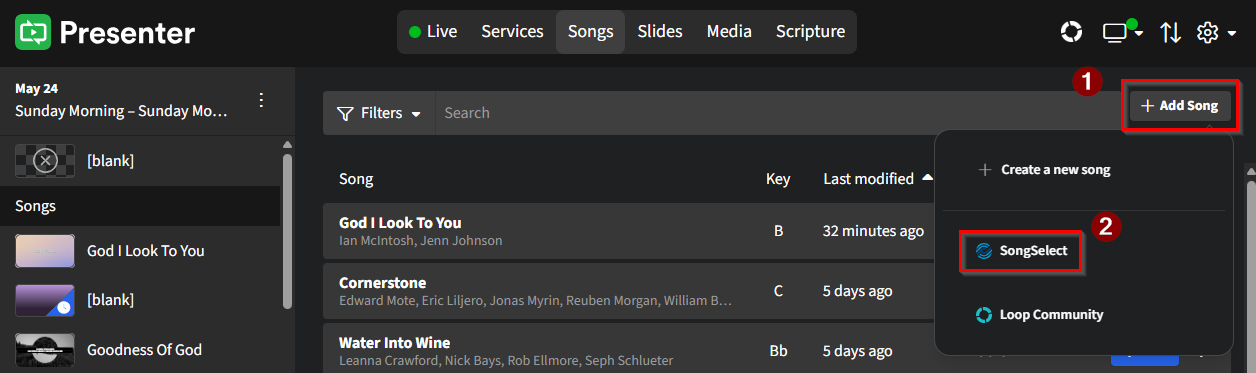
With your SongSelect account connected, click the + Add Song button in the right-hand corner of Presenter, then select SongSelect from the list of options.
Select or search for the desired song. Click on the eye icon to view a few of the song's lyrics to ensure you're selecting the song you want. Once you've found your desired song, click the + Add button. On the Import pop-up, set the max lines per slide and assign a Template, then click Import.
The selected song should immediately show in your song library at the top of the list.
Creating a New Song
If manually creating a song in Presenter is best for you, here are the steps!
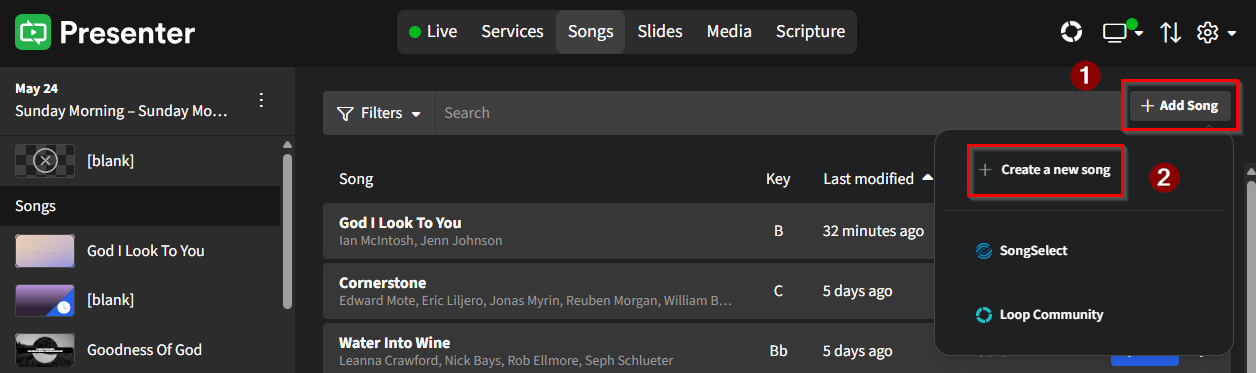
Click the + Add Song button in the right-hand corner of Presenter, then select + Create a new song.
In the New Song pop-up window, start by entering at least the Song Title. You can also include optional details such as the Artist and Song Key. Additionally, you have the option to assign a Template. Once you have completed the form, click Save.
After saving, you will be directed to the Song Editor, where you can build and customize your new song. Be sure to review the section on Editing Song Slides for helpful guidance!